Table of Contents
Beginner’s Guide to Python Programming
Welcome to your first steps in Python programming! This tutorial is designed for absolute beginners and will guide you through the basics of Python, from installation to writing your first program and understanding comments. By the end, you’ll have the confidence to start coding and exploring Python further.
Learning Goals
- Understand what Python is and why it’s popular
- Learn how to install Python and set up your coding environment
- Write and run your first Python program
- Use comments to make your code readable and maintainable
- Discover practical tips and avoid common mistakes
Introduction to Python
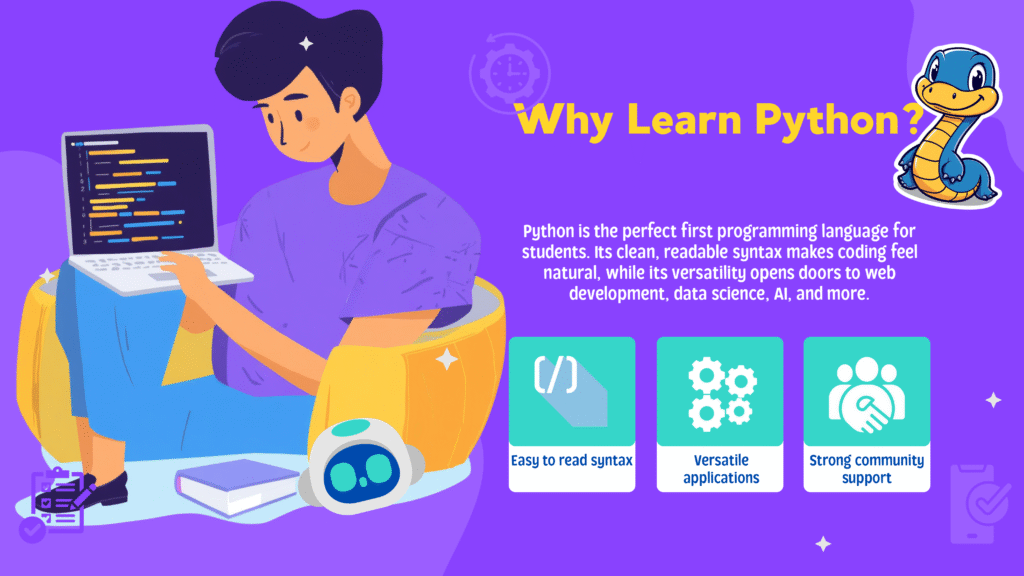
Python is a high-level, versatile programming language known for its simple and readable syntax. It is widely used in web development, data analysis, automation, and many other fields. Python supports multiple programming paradigms, including object-oriented, functional, and procedural programming. Its dynamic typing and automatic garbage collection make it easy for beginners to start coding without worrying about complex setup.
- Write programs with fewer lines of code
- No need to declare variable types explicitly
- Runs on Windows, macOS, and Linux
- Popular for both beginners and professionals
Setting Up Python
Before you start coding, you need to set up Python on your computer. You can either run Python online or install it locally.
Run Python Online
If you want to start immediately, use a free online Python editor. This lets you run code directly in your browser without any installation.
Install Python on Your Computer
Follow these steps to install Python and Visual Studio Code (VS Code), a popular code editor:
- Windows:
- Install VS Code from its official website.
- Download the latest Python installer from the official Python website.
- Run the installer and select “Install Now”. Check “Add python.exe to PATH”.
- Verify installation by running
python --versionin the command prompt.
- macOS:
- Install VS Code by dragging it to your Applications folder.
- Check your Python version in Terminal with
python3 --version. - If needed, download and install the latest Python version.
- Verify installation by running
python3 --version.
- Linux (Ubuntu):
- Install VS Code using
sudo snap install code --classic. - Check Python version with
python3 --version. - If needed, install Python 3 using
sudo apt install python3. - Verify installation by running
python3 --version.
- Install VS Code using
Writing Your First Python Program
Let’s write a simple Python program that prints “Hello, World!” to the screen. This is a classic first step in learning any programming language.
# This is a comment. It will not be executed.
print("Hello, World!")
Output:
Hello, World!Explanation:
print()is a built-in Python function that displays text.- Text is enclosed in quotes (single or double).
- Python uses indentation to define code blocks.
How the Program Works
Anything inside the print() function is displayed on the screen. You can use single or double quotes for strings:
print('Hello, World!')
print("Hello, World!")
Both lines produce the same output. For consistency, we’ll use double quotes in this tutorial.
Python Comments
Comments are notes added to your code to make it easier to understand. They are ignored by Python when your program runs.
Single-line Comments
# declare a variable
name = "John"
# print name
print(name)    # John
Use the # symbol to start a comment. Comments can be placed above code or next to it.
Multiline Comments
Python does not have a dedicated syntax for multiline comments. Use multiple single-line comments or multiline strings:
# This is an example of a multiline comment
# created using multiple single-line comments
# The code prints the text Hello World
print("Hello, World!")

'''This is an example
of a multiline comment'''
print("Hello, World!")
Using Comments to Prevent Code Execution
Comments are useful for debugging. You can comment out lines to prevent them from running:
number1 = 10
number2 = 15
sum = number1 + number2
print("The sum is:", sum)
# print("The product is:", product)
This prevents errors if product is not defined.
Practical Tips and Common Mistakes
- Use comments to explain why something is done, not just how.
- Write clear, readable code first; use comments to clarify complex logic.
- Don’t overuse comments—too many can clutter your code.
- Use comments to temporarily disable code during debugging.
Summary and Next Steps
- Python is easy to install and use, making it ideal for beginners.
- Your first program prints text using
print(). - Comments help make your code readable and maintainable.
- Use comments wisely for debugging and collaboration.
Next, explore Python variables, data types, and basic input/output. Practice writing simple programs and using comments to explain your code. Continue your learning journey with skillplayground tutorials and examples!
Further Learning
- Python Variables and Literals
- Python Type Conversion
- Python Basic Input and Output
- Python Operators
- Python Flow Control (if…else, for loop, while loop)
- Python Data Types (Numbers, List, Tuple, String, Set, Dictionary)
- Functions, Modules, and Packages
- File Handling and Exception Handling
- Object-Oriented Programming
- Advanced Topics (List Comprehension, Lambda Functions, Decorators, etc.)
For more tutorials and examples, visit skillplayground and keep practicing!